Serial Connection
Opening a port, and what each setting actually does
A serial link is one of the oldest ways two devices talk to each other: bits travel over a wire one after another, with no clock, no addresses, no packets. ComIO.Studio speaks to anything that uses it — RS-485 devices (frequency inverters, PLCs, servo drives, energy meters), RS-232 instruments, and plain UART boards behind a USB adapter. Everything you need to open a port lives in the Connection tab — the first tab on the left, never closable, open from the moment the app starts.
Where the controls are
A bar of module tiles runs across the top of the window. Each tile carries an icon and, for some modules, a small switch beside it.
- The icon opens that module's tab.
- The switch next to the serial-port icon connects and disconnects the port. It works without opening the tab, so you can drop the link while looking at a chart or a script.
- The switch stays greyed out until you pick a port — there is nothing to connect to yet.
Inside the Connection tab, from top to bottom: connection settings, logging, the terminal plug-in bar, the terminal, and the send bar.

Connection section, port closed — connect button, port and frame settings, DTR and RTS
Cables and converters — RS-232, RS-485, UART
Computers stopped shipping serial ports long ago, so between the USB socket and your
device there is almost always a small converter. It shows up in the port
list under the name its chip reports — FT232R USB UART, for example — and
ComIO.Studio talks to it exactly as it would to a built-in port. Baud rate, parity and the
rest describe the device on the far side, not the converter. What does differ is the
wiring, and that depends on which of three standards your device speaks. Find yours below;
each has its own kind of converter, and they are not interchangeable.
RS-232 — one device, a plug with pins
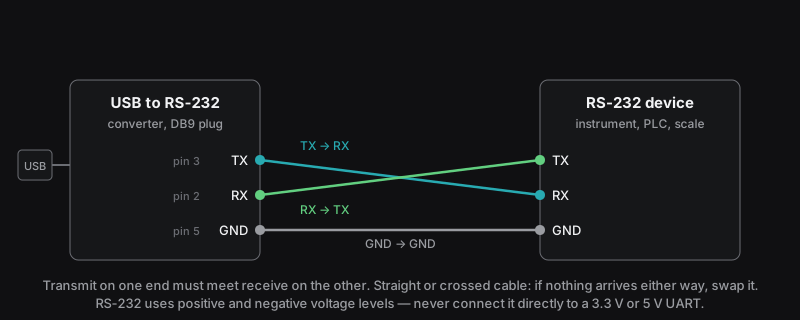
RS-232 — three wires do the work: TX to RX, RX to TX, GND to GND
The 9-pin plug (DB9) on instruments, older PLCs, scales and lab equipment. One device per cable. Three wires carry everything: the converter's TX goes to the device's RX, RX to TX, and GND to GND. Transmit on one end must meet receive on the other — that crossing is the whole trick.
Ready-made cables come in two kinds that look identical. A straight cable joins pin 2 to pin 2 and pin 3 to pin 3 — for a device that crosses the lines inside, the way a modem does. A crossed cable (null-modem) swaps them — for joining two ends that both behave like a computer. The wrong one gives silence in both directions and no error anywhere, so when a link is dead, this is the first thing to swap. Which pin does what on a DB9 depends on whether the device is DTE or DCE — check its manual.
RS-232 uses positive and negative voltage levels — never connect it directly to a 3.3 V or 5 V UART. That is what the UART section below is for. The other lines on the plug — DTR, RTS and the four indicators — are described under Control lines.
RS-485 — many devices on two wires
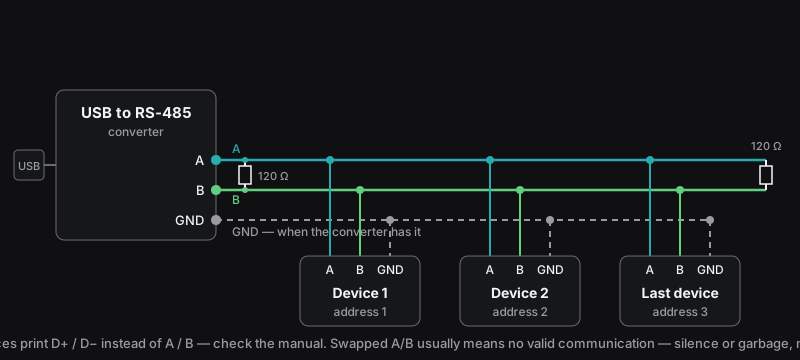
RS-485 — one pair runs through every device, A to A and B to B, with termination at both physical ends of the bus
The industrial one: frequency inverters, PLCs, energy meters, sensors, servo drives. A single twisted pair runs from the converter to the first device, on to the second, and down the line — dozens of devices on the same two wires. Each has an address, and a protocol such as Modbus RTU puts that address in front of every message to say who is being spoken to; the terminal's Modbus RTU mode shows it in its own column.
The two wires are A and B: A to A, B to B, all the way down the line. Some manufacturers print D+ and D− instead, and a few label them the other way round — the device manual settles it. Swap them and there is usually no valid communication — in the terminal that shows as silence or garbage, never as an error; swapping back costs nothing, so try that before anything else. A third wire, GND, is not on every converter — when it is, connect it: it keeps both ends at the same reference and spares you a whole class of intermittent faults.
The bus should be terminated at both physical ends of the main cable when reflections can affect communication: a 120 Ω resistor between A and B on the converter and on the last device. Short, low-speed bench connections often work without termination, while longer or faster buses are more likely to require it. Many converters and devices have a terminator built in, behind a jumper or a DIP switch.
This two-wire RS-485, the common kind, is half-duplex: one side talks at a time and everyone else listens. Most USB-to-RS-485 converters switch direction automatically, so there is nothing to set in ComIO.Studio. A few expect the software to toggle RTS around every transmission — ComIO.Studio does not, so pick an automatic one.
The terminal can monitor a working bus as long as the adapter remains in receive mode and does not transmit. If the adapter has built-in termination, disable it unless it is connected at a physical end of the bus. See Listening in.
UART (TTL) — straight to the board
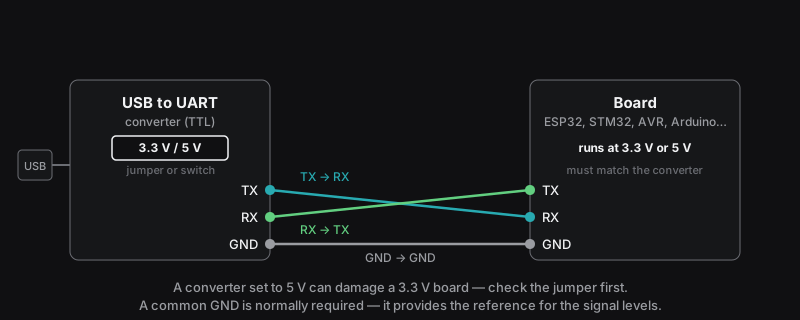
UART — TX to RX, RX to TX, GND to GND, and the converter's voltage set to match the board
The bare serial signal of a microcontroller, before any line driver: ESP32, STM32, AVR and Arduino boards, and the pin header on a module. Three wires again — the converter's TX to the board's RX, RX to TX, GND to GND. A common GND is normally required — it provides the reference for the signal levels.
Many boards carry the converter on board already — the USB socket on an Arduino or a development kit is a UART converter, with DTR and RTS wired to reset and boot mode. That is why the state of the DTR and RTS buttons matters before you open the port.
When it does not work
A wiring fault does not produce an error message — it produces a symptom on the screen. Start from what you see.
| What you see | Most likely causes, in order |
|---|---|
| Nothing arrives port On, counters at zero |
TX and RX not crossed. No GND wire. The wrong port picked from the list. On RS-232, a straight cable where a crossed one is needed, or the other way round. Or the device is simply waiting to be asked — a Modbus slave says nothing until it is polled, so send it something first. |
| Garbage bytes come in, make no sense |
Wrong baud rate. Wrong frame — parity or stop bits. On RS-485, A and B
swapped. The status bar at the bottom shows the frame in short form
(19200 8E1 No FC); it must match the device's manual. |
| Port not in the list | The converter's driver is missing — some chips need one on Windows and macOS. The USB cable carries power only, as many phone cables do. If in doubt, ⟳ next to the list rebuilds it. |
| Port refuses to open status stays Off, switch flips back |
Another program holds the port: a second terminal, an IDE's serial monitor,
a flashing tool. Close it and try again. On Linux, your user may lack
permission to the device — membership of the dialout group is the
usual fix. |
The settings, one by one
The header row carries a status dot and the state next to it: Off or On. On the right of the same row sit four line indicators — DSR, CTS, DCD, RI. These are fields on the screen, not lamps on your adapter: they light up when the device raises that line, and you cannot click them.
The button on the left of the second row — the one with the cable picture — opens and closes the port. It is one button, not two: a red cross pulses over it while the port is closed, and once the port is open the cable turns green and a spark runs along it.
Each setting on that row:
| Setting | What it does |
|---|---|
| Selected port | Which serial port to open. Each entry shows the system name together with the
adapter's product name, e.g. /dev/cu.usbserial-A9078Q (FT232R USB UART).
The ⟳ button next to it rebuilds the list. |
| Baud rate | The speed of the line, in bits per second. Both ends must use the same value; a mismatch turns text into garbage rather than failing outright. Garbage on screen often means the wrong baud rate — if the speed is correct, check data bits, parity and stop bits. 9600 and 115200 cover most devices; the default is 115200. |
| Data | How many bits make up one character: 5, 6, 7 or 8. Nearly every device made in the last twenty years uses 8; 7 turns up on old text-only equipment. |
| Parity | An extra bit added to each character to catch a single flipped bit. None, Odd or Even. Industrial devices often insist on Even — a servo drive set to 8E1 stays silent on 8N1 even when the frame and the checksum are perfect. |
| Stop | How many bits close a character: 1 or 2. |
| Flow | How the two sides say “slow down”. No FC — neither side does. RTS/CTS — separate wires carry the signal. XON/XOFF — agreed characters travel inside the data stream, so it does not suit raw binary data, where those byte values are ordinary content — unless the protocol escapes them. |
Your choices are written to disk, so the port comes back configured the way you left it.
Changing settings while connected
Baud rate, data bits, parity, stop bits and flow control take effect immediately. The port is not closed and reopened: the terminal keeps its contents and the counters keep counting. Testing a speed costs one click, not a reconnect cycle.
The selected port is the exception. Picking a different port while connected does not move the connection — the open port stays open, and the new name is used the next time you click connect.
Control lines
Of the six RS-232 control lines, two are yours to drive and four are readouts.
RTS (Request To Send) and DTR (Data Terminal Ready) are buttons. With the port open, clicking one changes the line straight away. With the port closed the button still works and sets the state the line will have the moment the port opens — which matters on ESP32 and Arduino boards, where DTR is usually wired to reset and RTS to boot mode. Getting that state right before opening is the difference between a board that boots your firmware and one that lands in the bootloader.
With Flow set to RTS/CTS the operating system drives RTS itself; leave the button alone in that mode.
DSR, CTS, DCD and RI are read-only fields, refreshed about twice a second. DSR says the device is powered and ready, CTS is the line that pauses transmission under hardware flow control, and DCD and RI are leftovers from the modem era that most USB adapters never raise.
Plugging and unplugging
The app listens to the operating system's USB events, so a newly plugged adapter appears in the list on its own — no refresh, no restart. Unplugging an open port is treated as a disconnect rather than an error: the status dot goes dark, the switch turns off, and whatever is already in the terminal stays there.
On macOS the system exposes a few ports of its own — the kernel debug console, the Wi-Fi debug port, the Bluetooth incoming port. They would sit in front of the port you are actually looking for, so they are hidden by default. If you need one, turn on Show system ports in Info → Settings… → General.
Where you see the port state
The bar along the bottom of the window is the permanent readout, whichever tab you are in.
From the left: a coloured dot with the port name, the frame in short form
(19200 8E1 No FC — that is 19200 baud, 8 data bits, Even parity,
1 stop bit, no flow control), bytes received and sent, the time the link has been up,
and how many times the link has been re-established. On the right of the same bar sit the
current theme, the interface language, your licence and the application version; clicking the
licence opens your account window.
Click either byte counter to cycle it through the individual senders — the command bar, a macro, a trigger, a script, the assistant — which is how you tell your own traffic apart from a script's.